Translation routes
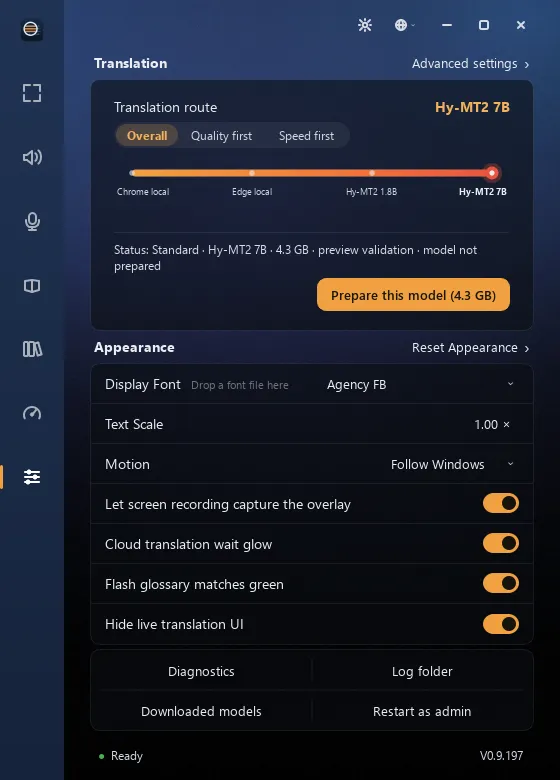
Pick a route on the Translation route slider in Settings; it takes effect when you let go. NativeLens never switches routes behind your back — if a route fails, it tells you instead of quietly trying another.
Local models (default)
Section titled “Local models (default)”Hy-MT2 1.8B (about 1 GB) and Hy-MT2 7B (about 4.3 GB) run on your PC — free, no account, and offline once downloaded. 1.8B doesn’t need a graphics card; 7B runs only on a graphics card (video memory needed: TBD) and won’t load if there isn’t enough. Click Prepare recommended local model to download 1.8B.
Browser translation
Section titled “Browser translation”Edge local and Chrome local use the offline translator built into Microsoft Edge or Google Chrome — no API key. NativeLens opens a small companion page in the browser. The first time you use a language pair, prepare it on that page, and keep the page open while you translate.
Cloud AI
Section titled “Cloud AI”Not tested with real accounts yet.
Turn on Show advanced routes to add DeepSeek, OpenAI, Claude, Gemini or any OpenAI-compatible service, using your own API key. Each one asks you to confirm the first time — before it sends anything or might charge you. Keys are kept in Windows Credential Manager.
The Performance page
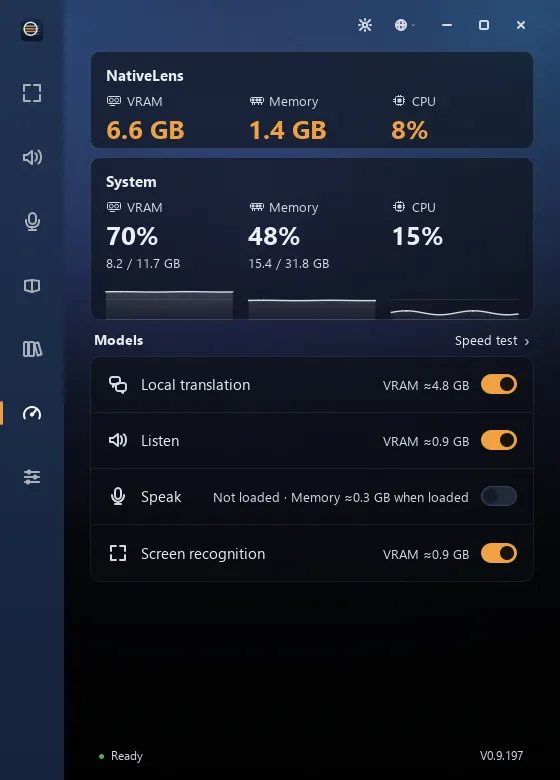
Section titled “The Performance page”The Performance page shows how much VRAM, memory and CPU NativeLens and the whole system are using. Each model — local translation, Listen, Speak and screen recognition — has a switch: on loads it now, off frees it. You don’t have to switch anything on first; each feature loads what it needs. Speed test runs each loaded model once and shows how long it took.